The Stylish Font Customizer gives you a place to build your own nickname instead of picking one from a ready-made list. Type a name, change the lettering, add wings, crowns, stars or other gaming symbols, and see how everything looks together before copying it.
You can use it as a fancy font generator, a name decorator, or both. Maybe you only want your clan tag in small caps. Maybe you want a Free Fire nickname with matching wings and a crown. Either way, you can make those changes directly in the Nickname Canvas.
It's useful for creating names for Free Fire, BGMI, PUBG Mobile, Call of Duty and other games, as well as decorative display names for Discord and social media. You don't need to install a separate font or editing app.
How to Use the Stylish Font Customizer
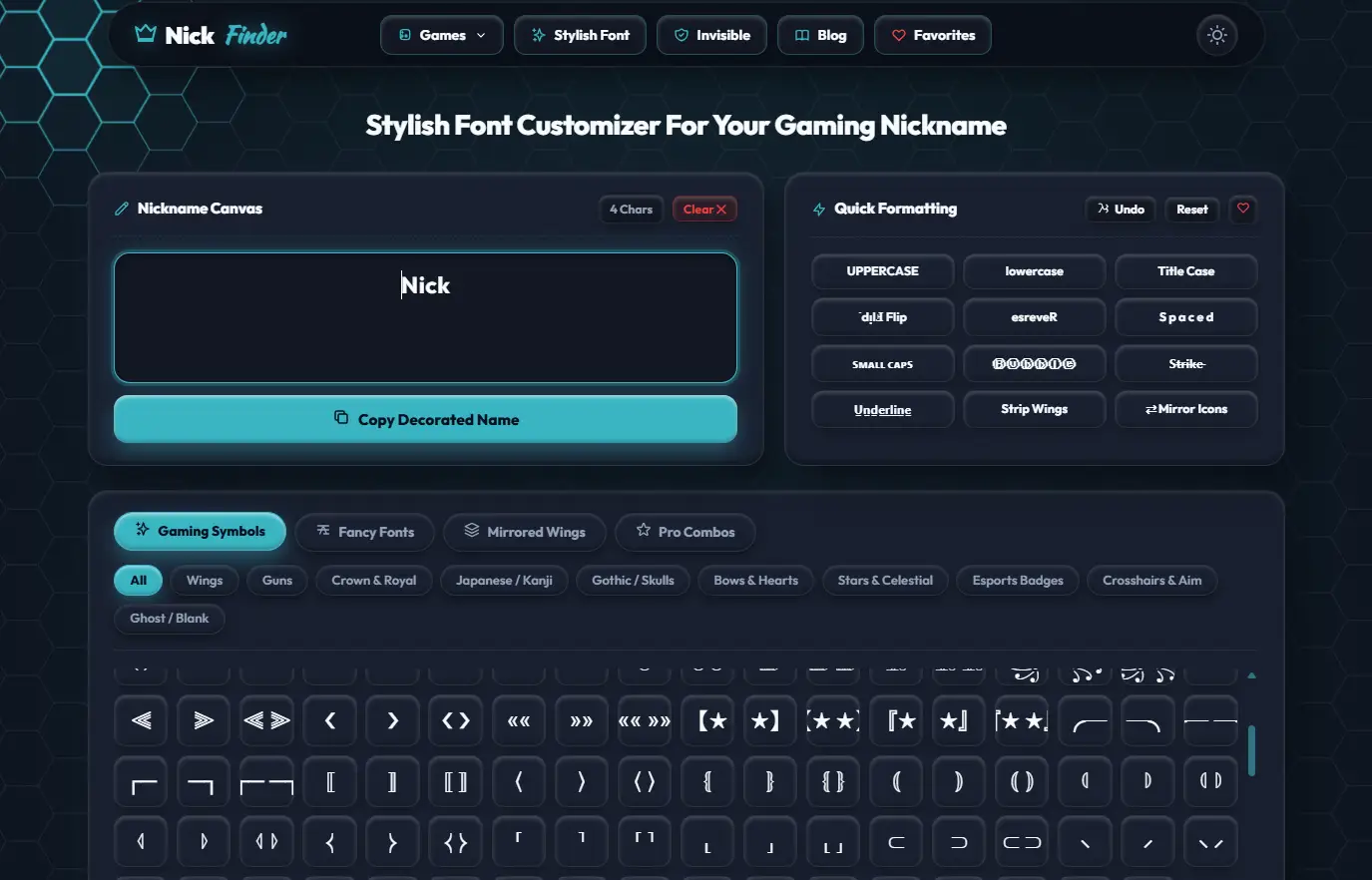
The editor has a Nickname Canvas on the left, Quick Formatting controls on the right, and four tabs underneath for exploring different styles.
Here's how to make your first nickname.
Step 1: Enter your name
Click inside the Nickname Canvas and type your gaming ID, clan tag or any word you want to decorate. The character counter above the canvas updates as you make changes.
Start with a short name if you plan to use lots of symbols. You'll have more room to experiment.
Step 2: Try the Quick Formatting options
Want your nickname in small caps? Prefer spaced letters or bubble text? The Quick Formatting panel has buttons for these effects, along with uppercase, lowercase, Title Case, Flip, Reverse, Strike and Underline.
You can experiment with different effects and use Undo if you don't like the result.
Step 3: Choose your symbols or fonts
Below the canvas, you'll find four tabs:
- Gaming Symbols: Wings, guns, crowns, hearts, stars, esports decorations and more.
- Fancy Fonts: Different Unicode lettering styles for your nickname.
- Mirrored Wings: Matching decorations that frame your name.
- Pro Combos: More elaborate design combinations to explore.
Select a tab and browse the available options.
Step 4: Customize your nickname
Add decorations to the name you're working on. Try a crown before your name, a star at the end or matching wings on both sides.
If you change your mind, use Undo or edit the canvas. You can also use Clear to empty the canvas and start again.
Step 5: Copy your finished name
When everything looks right, click Copy Decorated Name.
Paste the result into your game or profile and check whether the characters are supported. Some games accept decorative symbols, while others have stricter naming rules.
Nickname Symbols Copy Paste – Wings, Crowns, Stars and More
Finding a particular gaming symbol isn't always easy. Most keyboards don't include decorative wings, crosshairs, unusual brackets or the little symbols people use in clan names.
That's why having nickname symbols you can copy and paste from one place is useful.
The Gaming Symbols tab groups different designs by theme. You can choose an individual symbol, add it to your name and see how it looks before trying another.
Wings Symbol Copy Paste
Wings are one of the easiest ways to decorate a short nickname.
The Wings category includes different wing-shaped characters and arrangements. Some work as small accents, while others are better for framing a name.
For example, you might start with something simple like ʚNickɞ or use a larger decorative pair around a short gaming ID.
If you need a wings symbol to copy and paste, try a few sizes before deciding. Large wings can take up a surprising amount of space, especially when the game has a nickname length limit.
The Mirrored Wings tab is another option when you want both sides to match.
Crown Symbol Copy Paste
A crown can make a short name stand out without covering it in decorations.
The Crown & Royal category works particularly well with names like King, Sultan, Emperor or Royal.
You can copy and paste a crown symbol before your nickname, place it at the end or combine it with gothic lettering.
Try using one crown first. A short name with a single symbol can look cleaner than a design with several crowns and stars together.
Gun Symbols for Nickname Designs
The Guns category is useful for shooter-themed gaming names.
If you're looking for gun symbols for nickname designs, start with a short name such as Ghost, Sniper, Hunter or Reaper.
Weapon-themed decorations can be added before or after the text. You can also experiment with matching symbols, although a simpler arrangement is often easier to read.
These designs are particularly suited to shooter-themed profiles and clan names.
Crosshair Symbols for Gaming Names
Crosshair symbols are another option for players who like sniper, aim or headshot-themed nicknames.
Open Crosshairs & Aim to explore the available targeting-style decorations.
A small crosshair works well beside a short clan tag, especially if you don't want large symbols on both sides of your name.
You can also mix a crosshair with small caps or gothic letters to see which combination fits your gaming ID.
Star Symbols Copy Paste
Stars are useful because they suit almost any kind of nickname.
The Stars & Celestial category includes different star shapes, sparkles and moon-themed symbols.
If you want star symbols to copy and paste, try adding a single star beside your name or using matching decorations on both sides.
For example, ★Shadow★ keeps the original word readable while giving it a different appearance.
Stars also work well with aesthetic names and social media bios.
Heart Symbols for Name Decoration
Hearts aren't limited to romantic nicknames. They also work for cute gaming IDs, matching names and aesthetic profiles.
The Bows & Hearts category has different decorations you can combine with your text.
If you want heart symbols for name designs, try something simple like ♡Luna♡ or add a small heart beside your existing nickname.
Cursive and small-cap styles often work nicely with hearts, although you can mix them with any lettering you prefer.
Skull Symbols Copy Paste
For a darker nickname, explore Gothic / Skulls.
This category contains decorations suited to names like Phantom, Venom, Reaper and Shadow.
If you're looking for skull symbols to copy and paste, try them with a short name or a gothic font.
You don't need several dark symbols to make the design work. A single skull, dagger or cross-style decoration may be enough.
Esports Badges and Clan Symbols
If you regularly play with a squad, a consistent clan tag helps people recognise your team.
The Esports Badges category is useful for creating decorated tags and team-style names.
You can experiment with brackets, badge-like decorations and other symbols before adding your individual nickname.
Keeping the clan tag short also leaves more space for the player name.
Mirrored Wings Text and Wings Name Generator
Some wing decorations are designed for the left side of a name, while others are meant for the right.
If you use the same symbol on both sides, the result might not look balanced.
The Mirrored Wings tab helps you create names with matching decorations instead of arranging every piece manually.
You can use it as a wings name generator when you want a nickname framed by matching shapes.
It's particularly useful for short names, where the wings have enough room to stand out without making the text difficult to read.
How to Make a Symmetrical Wings Nickname
Start by entering your name in the canvas.
Open Mirrored Wings and explore the available pairs. Choose an arrangement that fits the length and style of your name.
If you want a symmetrical wings nickname, pay attention to both sides of the text. Matching decorations usually look better when there's enough space around the letters.
You can also experiment with an angel wings symbol for a name, or choose a smaller arrangement if you prefer a subtle design.
Two Quick Formatting controls are particularly useful here.
Strip Wings helps remove wing decorations when you want to try something different.
Mirror Icons lets you experiment with the arrangement of symbols around your name.
If the result becomes too crowded, remove a decoration and try again. Sometimes the simplest pair looks the best.
Quick Formatting Tools for Stylish Text
The Quick Formatting panel lets you change the text itself before adding decorations.
Some effects are straightforward, while others completely change how your nickname looks.
Upside Down Text Generator
The Flip button creates an upside-down-looking version of your text.
It uses alternative Unicode characters and changes their arrangement to create the effect.
An upside down text generator can be fun for short nicknames, social media bios and messages. Just remember that not every letter has a matching upside-down character.
It's worth checking the result before copying it.
Reverse Text Generator
The Reverse button changes the order of the letters.
For example, Nick becomes kciN.
This reverse text generator is useful when you want to experiment with backwards names or create something unusual from a short word.
Unlike Flip, Reverse doesn't try to turn the letters upside down.
Small Caps Generator
Small caps give your nickname a compact, capital-letter appearance.
For example, Nick can look like ɴɪᴄᴋ.
This small caps generator effect is useful for clan tags, Discord display names and gaming nicknames that need a clean appearance.
It also pairs well with simple brackets, stars and crowns.
Bubble Text Generator
Bubble text places letters inside circles or similar enclosed shapes.
For example, NICK can become ⓃⒾⒸⓀ.
A bubble text generator is a good choice for playful names, cute nicknames and decorative text.
Keep in mind that games don't always support enclosed Unicode letters, so test the result before saving it.
Strikethrough Text Generator
The Strike option adds a line through the letters.
You can use this strikethrough text generator effect for short names, messages or social media text.
Because the effect relies on special characters or combining marks, it might display differently across apps and devices.
Underline Text Generator
The Underline option adds a line beneath the text.
An underline text generator can make a short word look different without adding symbols around it.
It works best when the underline stays aligned with the letters. Check the copied result, since some apps handle these marks differently.
Spaced Text Generator
The Spaced button puts gaps between the letters.
For example, KING becomes K I N G.
This spaced text generator effect gives short names a wider appearance and can work well for clan tags or aesthetic text.
However, the additional spaces can increase the character count. Some games also remove certain spaces from nicknames.
Uppercase, Lowercase and Title Case
These are the simplest formatting options, but they're useful.
Uppercase can give a short gaming name a stronger appearance. Lowercase often looks cleaner and less formal.
Title Case works well for names with multiple words.
Try changing the capitalisation before adding symbols. Sometimes that's all a nickname needs.
Fancy Fonts – Italic, Gothic, Cursive and Aesthetic Styles
The Fancy Fonts tab changes the appearance of your letters using Unicode characters.
You can experiment with cursive, bold, italic, gothic, monospace, double-struck and other styles without installing a font.
Here are a few examples using the same word:
- 𝓝𝓲𝓬𝓴 – Cursive
- 𝑵𝒊𝓬𝓴 – Bold italic
- 𝔑𝔦𝔠𝔨 – Gothic
- 𝕹𝖎𝖈𝖐 – Bold gothic
- ɴɪᴄᴋ – Small caps
- Ⓝⓘⓒⓚ – Circled letters
The important part is being able to compare these styles with your own nickname.
A word that looks good in cursive might be difficult to read in gothic lettering. Try both before adding more decoration.
Italic and Gothic Font Generator
If you need an italic and gothic font generator for gaming names, both kinds of styles are available through the Fancy Fonts section.
Italic lettering works well for short profile names and decorative text. Gothic letters have a darker, old-style appearance that suits some gaming nicknames.
You can combine either style with symbols, but avoid adding too many details to already complicated lettering.
Aesthetic Fonts for Names and Bios
Not every fancy font needs to look bold or aggressive.
Aesthetic fonts often use small caps, cursive letters, simple shapes or carefully placed symbols.
Try a short word such as Moon, Echo, Dream or Luna with a star or heart.
These styles can work well for Instagram display names, Discord profiles and other places where decorative Unicode characters are supported.
Font Changer for Games and Fancy Text Converter
A common question is how a nickname can keep its unusual lettering after you paste it into another app.
Most online font tools aren't installing a real font on your phone.
Instead, they replace ordinary letters with Unicode characters that resemble different font styles.
That's what makes the customizer useful as a fancy text converter. You enter normal text, choose a style and copy the converted characters.
It can also work as a font changer for games, provided the game accepts those characters.
For example, a game might not have a built-in option for gothic letters, but it may still allow certain Unicode characters that look gothic.
That doesn't mean every design will work.
Some games restrict special characters in usernames. Others may accept the text but display certain symbols as empty squares.
Always test the final nickname in the game before confirming a change.
Japanese Symbols for Name Designs, Kanji and Anime Styles
The Japanese / Kanji category includes Japanese-themed characters and decorations for creating different kinds of nicknames.
These can be useful if you like anime-inspired names or want something more minimal than wings and crowns.
Brackets and decorative corner marks are particularly handy for framing short words.
Kanji for Gaming Name Designs
If you're choosing kanji for a gaming name, make sure you understand what the character actually means.
Kanji are real written characters with meanings and readings. They aren't simply decorative shapes.
A symbol that looks interesting might mean something completely different from what you intended.
It's worth checking the meaning before using it in your name.
Anime Name Symbols
Anime name symbols can include Japanese-style brackets, decorative marks and characters used alongside short names.
You can try combining them with ordinary letters or a simple gaming ID.
Keep the final design readable, especially if your teammates need to recognise your name quickly.
Also, some games don't accept Japanese characters or unusual Unicode symbols. Test the result before using a rename card.
Free Fire Symbols Copy Paste – Make Your Own Gaming Name
Free Fire players often use decorative symbols to make their nicknames stand out.
If you want Free Fire symbols to copy and paste, the Gaming Symbols tab has several categories worth exploring.
Wings, crowns, stars, gothic decorations and weapon-themed symbols can all be used to build a Free Fire-style nickname.
Start with a short word like King, Shadow, Rocky or Ghost. Then add one decoration and see how it looks.
You can always add more, but it's easier to start with a readable name than to remove a dozen symbols later.
Free Fire Name Symbols With Wings
For Free Fire name symbols with wings, the Mirrored Wings tab is a useful starting point.
Type your nickname, choose a matching pair and check how much space the decorations take up.
You can also mix wings with a simple font style instead of adding extra crowns or stars.
Free Fire has rules about nickname length and supported characters. Players commonly mention a 12-character limit, but you should check what the current game accepts rather than relying on that number alone.
Unicode decorations can also affect how the game counts the length of your name.
If changing your nickname requires diamonds or a rename card, check the result carefully before confirming it.
BGMI Name Symbols Copy Paste
BGMI players can use the customizer to experiment with clan tags, matching symbols and different letter styles.
If you're looking for BGMI name symbols to copy and paste, try the Esports Badges, Wings, Crown & Royal and Gothic / Skulls categories.
A good starting point is a short clan tag followed by your player name.
For example, you could keep your squad tag in ordinary letters and use small caps for the nickname. Or you could add a single star beside the name.
Players often report a 14-character nickname limit in BGMI, but the game itself is the final place to check the current rules and character handling.
The canvas counter helps you keep track of your text while editing. It doesn't guarantee that BGMI will accept every symbol.
Before using a Rename Card, paste the result into the game and check for any errors.
PUBG Name Decoration
PUBG Mobile names don't always need elaborate symbols.
A short clan tag, a compact nickname and one small decoration can work well together.
If you're experimenting with PUBG name decoration, try small caps, simple brackets or a star before adding larger symbols.
Matching clan tags are also useful if you play with the same squad regularly.
You can build several versions in the customizer and compare them before deciding which one to use.
As with other games, PUBG Mobile has its own character restrictions. A design that works in another game might not be accepted here.
COD Name Symbols for Call of Duty Mobile
For Call of Duty Mobile, short military-themed names can work well with the Guns, Crosshairs & Aim and Esports Badges categories.
Ghost, Viper, Falcon, Reaper and Hunter are a few starting ideas.
If you want COD name symbols, try a small crosshair beside your name or use a badge-style design with your clan tag.
You don't need to decorate every letter.
Keeping the name readable makes it easier for teammates to recognise you during matches.
Remember to check which special characters Call of Duty Mobile currently allows before confirming a name change.
Valorant Name Symbols and Riot ID Rules
Valorant uses Riot IDs, which consist of a game name and a tagline.
Unlike games that allow a broad selection of decorative symbols, Riot has specific naming rules.
If you're exploring Valorant name symbols, remember that a Unicode design created here may not be accepted in your Riot ID.
You can still use the customizer to experiment with name ideas, but keep a version using supported characters ready.
A short, memorable name is usually more practical than a complicated design that the game rejects.
Blank Character Copy Paste – Invisible and Ghost Names
The Ghost / Blank category includes special characters that can appear empty or nearly invisible.
These are different from ordinary spaces typed with a keyboard.
Some players use them to create unusual gaps between a clan tag and nickname. Others experiment with names that appear blank.
Invisible Name for Free Fire
If you're trying to make an invisible name for Free Fire, you can experiment with the blank characters in the Ghost / Blank category.
Copy a character, place it in your nickname and see whether the game accepts it.
Some games remove invisible characters automatically. Others reject names that contain only blank characters.
Don't assume a blank-looking name will work just because it appears correctly in the editor.
Ghost Name Generator
A ghost name generator style typically uses invisible characters, unusual spacing or a small visible symbol.
You can experiment with those combinations using the available blank characters and decorations.
If the game rejects a completely invisible name, try a readable nickname with a supported separator instead.
For most players, a simple name with one unusual detail is easier to use than a name nobody can see.
Pro Combos – Experiment With Complete Nickname Styles
After trying individual fonts and symbols, you might want something more elaborate.
That's where the Pro Combos tab comes in.
It gives you another way to explore decorative combinations rather than choosing every part from scratch.
You can browse the available options and use them as inspiration for your own nickname.
If you already have a name with gothic letters, try pairing it with a simple symbol arrangement. If your name has large mirrored wings, consider keeping the lettering plain.
The idea is to find a combination that looks balanced.
You can always return to the canvas and make changes if the design feels too crowded.
Why Some Stylish Names Don't Work in Games
Sometimes a nickname looks perfect in the customizer but doesn't work after you paste it into a game.
That doesn't necessarily mean the text was copied incorrectly.
There are a few common reasons.
The game doesn't support the symbol. Some games allow only certain Unicode characters. Try removing the decoration or switching to a simpler style.
Your nickname is too long. Special characters and combining marks can use more character space than you expect. Shorten the original name or remove unnecessary symbols.
The text appears as squares. This usually means the app or device doesn't have a suitable glyph for one or more characters.
Invisible characters disappear. Some games automatically remove blank or zero-width characters.
The name breaks a platform rule. Games may restrict certain words, symbols or naming formats, even if they appear correctly in the editor.
If your nickname gets rejected, remove one decoration at a time and test again.
That usually makes it easier to identify which character is causing the problem.
Frequently Asked Questions
What is the Stylish Font Customizer?
It's a nickname editor that lets you combine fancy Unicode fonts, gaming symbols, wings and other decorations. You can build and change the design directly in the Nickname Canvas before copying it.
Is this different from a normal nickname generator?
Yes. A typical nickname generator shows you a list of ready-made designs. This customizer lets you edit the lettering, add individual symbols and adjust the result yourself.
Can I create a gaming name with wings?
Yes. Use the Wings category for individual decorations or open Mirrored Wings to explore matching designs for both sides of your name.
Can I add a crown, heart or star to my nickname?
Yes. The Gaming Symbols tab includes categories for crowns, hearts, stars and other decorative characters. You can combine them with your existing text.
Can I use the customizer for Free Fire, BGMI and PUBG?
You can create and copy names for Free Fire, BGMI and PUBG. However, each game has its own nickname rules, so not every Unicode character or decorative design will be accepted.
How do I make my nickname in small caps or gothic letters?
Type your name in the canvas and use Small Caps in Quick Formatting, or open Fancy Fonts to explore gothic and other Unicode lettering styles.
Can I create an invisible gaming name?
You can try special blank characters from the Ghost / Blank category or our Invisible Space tool. Some games accept certain invisible characters, while others block or remove them.
Can I undo a change?
Yes. Use Undo to reverse an edit. The canvas also has a Clear button if you want to remove the text and start again.
Does the character counter guarantee my name will fit?
No. The counter helps you monitor the length of your text, but different games may count or restrict Unicode characters differently.
Why does my decorated nickname show boxes?
The app or device may not support one or more of the characters you've copied. Try a simpler font style or a more common symbol.
Can I use these fonts for Instagram and Discord?
You can copy decorative text into supported display-name and profile fields. Usernames are often more restricted, so check the platform's rules before using unusual characters.
Is the Stylish Font Customizer free?
Yes. You can use the available editing tools, fonts and symbols directly on the page without installing a separate application.
Make Your Nickname Look the Way You Want
You don't need to change your entire gaming name to make it look different.
Sometimes small caps are enough. Sometimes a pair of wings or a crown does the job.
Type your name into the canvas, experiment with the symbols and formatting options, and remove anything that doesn't fit.
When you're happy with the result, click Copy Decorated Name and try it in your game or profile.
Explore Curated Nicknames & Gaming Hubs
Ready to apply your styled text? Check out our 12,000+ curated gamer identities and game-specific hubs: